Basic Guide to Gravio System
1. Basic Configuration and Terminology
The Gravio system consists of the following main components:
- Gravio HubKit: A set of modules for collecting and managing sensor data
- Gravio HubKit Web UI: A web-based management interface bundled with HubKit. Manages HubKit settings, licenses, accounts, base property profiles, and inference models. With a MAIN license, it additionally manages subordinate Node hubs, statistics of aggregated sensor data, and calendars (integrates the former Gravio Coordinator and Configuration Manager)
- Gravio Studio: A tool for configuring HubKit and editing action flows (available for Windows/Mac)
Terminology
- Node Hub (Node): A Gravio HubKit server with a NODE license
- Main Server: A Gravio HubKit server with a MAIN license
- Action Flow: A data flow program created by users
2. Installation Guide
Installing Gravio HubKit
- Supported Platforms:
- Windows
- macOS
- Linux (Ubuntu AMD64/ARM64)
-
Gravio Hub X64 (dedicated hardware)
-
Download the appropriate installer from the Gravio official website
- Run the installer
- Open the Gravio HubKit Web UI login screen and log in using either a gravio.com account or the local "gravio" account
- Obtain a license and configure the system
Installing Gravio Studio
- Windows Version: Download and install from Microsoft Store
- Mac Version: Download and install from App Store
3. Operational Configuration Options
When setting up the Gravio system, choose from the following operational methods:
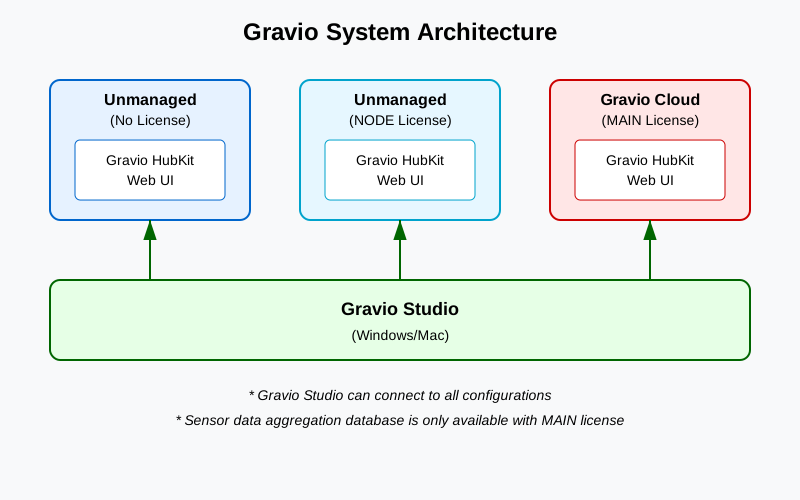
- Unmanaged (No License): Basic configuration running Node hub independently without a license
- Operates as a standalone Node hub
-
Limited functionality
-
Unmanaged (NODE License): Server with NODE license configured
- Operates as a single Node hub
- Not under management by any other server
-
Servers in this state are called "Standalone Nodes"
-
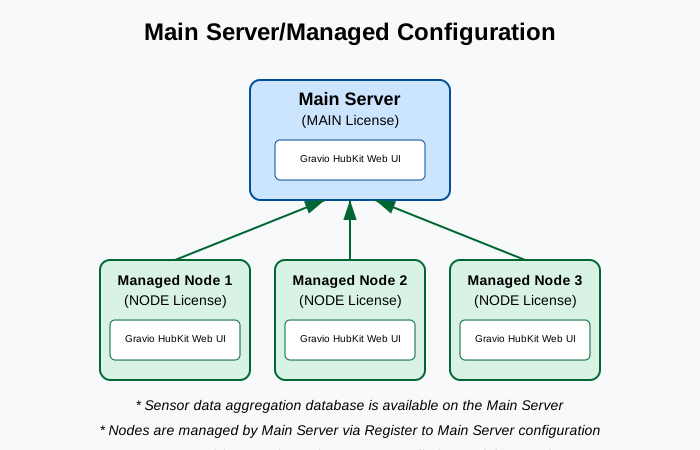
Main Server/Managed Configuration:
- Main Server: Server with MAIN license
- Operates as a central server managing other Node hubs
- Managed: Unmanaged Node hub with "Register to Main Server" configuration
- Becomes managed by specifying Main Server address on the Node hub
- Operates as a Node hub under Main Server management
Gravio System Architecture
Main Server/Managed Configuration Details
In the Main Server/Managed configuration, a Main Server with MAIN license manages multiple Managed Nodes. The relationship between nodes and Main Server is shown in the following diagram:
4. License Management
A license is required to use Gravio:
- Obtaining license key via internet
- Log in to Gravio.com account
-
Select available license
-
For offline environments
- Download license file from Gravio.com in advance
- Import the license file
5. Gravio Hub X64 Configuration
Network Settings
- Wired LAN connection: Connect LAN cable and configure DHCP or static IP
- Wireless LAN connection: Configure WiFi settings
Gravio Hub X64 Settings
- Network configuration
- Wired LAN connection: Connect LAN cable and configure DHCP or static IP
- Wireless LAN connection: Configure WiFi settings
- Time settings
- Region settings
- SSH access configuration (optional)
- Auto-shutdown settings (optional)
6. Using Gravio Cloud
Gravio Cloud is a service that hosts the Main Server on the gravio.cloud domain. Gravio Business/Business Pro customers can utilize Asteria's Gravio Cloud hosted environment by configuring one of their MAIN licenses on this hosting server.
Steps to use Gravio Cloud: 1. User logs in to gravio.com 2. Click "Request gravio cloud server configuration" button in the license list for the desired MAIN license 3. Enter request information 4. Access using the information provided via email
7. Account Types
The Gravio system uses two main types of accounts:
- gravio.com Account:
- Created by signing up on Gravio.com
- Licenses are assigned to this account when purchased
-
Can log in to HubKit Web UI when Node hub is connected to the internet
-
Local Account:
- Used when Node hub is offline or local authentication is required
- Initial "gravio" account is created upon HubKit installation
- Default password is "graviohub", must be changed at first login
- Users can create additional local accounts
Note: Gravio HubKit Web UI supports both gravio.com accounts (online) and local accounts (offline).
8. Main Features of Gravio HubKit
Gravio HubKit Web UI
After logging in with the local "gravio" account, the Gravio HubKit Web UI management screen displays. Here are the main features of each tab:
Gravio Settings
- HubKit Information: Display and copy HubKit ID
- Gravio License Key:
- Import license key
- Obtain license key via internet
- Login with gravio.com account to view available licenses
- Select appropriate license (Gravio Standard, Enterprise, Business, Business Pro, etc.)
- Choose between MAIN and NODE licenses
- License status display
- Shows configured license type, ID, and type when successfully added
- Setting a license (MAIN or NODE) enables the Accounts, Inference Models, and Base Property Profiles tabs
- Setting a MAIN license additionally enables the Calendar and Statistics tabs
- Option to release license key
- Certificate Settings:
- Enable/disable SSL
- Upload SSL certificates (key file and certificate file)
- Automatic acquisition and renewal of server certificates via Let's Encrypt (Gravio 6.3.2 and later)
- Proxy Settings:
- HTTPS proxy configuration
- HTTP proxy configuration
- Proxy URL specification
- HubKit Backup:
- Export HubKit data (create backup)
- Import HubKit data (restore from backup)
- Gravio Hub/PC Support Logs:
- Output support log files
- System log collection for troubleshooting
Hub Management
The Hub Management tab shows detailed HubKit status and management. Without a license, the following information is displayed:
- HubKit (This machine) Status:
- Current status (Unmanaged)
- Register to Main Server button (for Main Server connection)
- System Status:
- Hub operation status (running/stopped)
- Uptime display
- Last report timestamp
- Resource Usage:
- CPU utilization (kernel/user)
- Disk space (used/available)
- Memory usage (used/available)
- Action Settings:
- Number of registered actions
- Data Record Volume:
- Sensor data record count
- Sensor Status:
- Area name, layer name, device count list
Accounts
Available with a MAIN or NODE license. Manages local accounts for system access:
- Account List:
- View registered accounts, names, permissions
- Add/Edit Accounts:
- Set account name and full name
- Configure password
- Set permission level (Admin, Developer, Maintainer, AppUser, etc.)
- Account Management:
- System access permission management
- Edit/delete accounts
Calendar
Available only with a MAIN license. Create and manage calendars for Action Flow execution schedules:
- Calendar List:
- View existing calendars
- Create new calendars
- Calendar Creation:
- Set calendar name
- Specify start/end dates
- Select execution days (Sun-Sat)
- Calendar View:
- View yearly calendar (monthly display)
- Visual confirmation of active/inactive days
- Action Flow Control:
- Set execution for business days or specific days
- Calendar-based Action Flow execution control
Base Property Profiles
Available with a MAIN or NODE license. Centrally manages connection and authentication information referenced by action components as "Base Property Profiles":
- Profile List:
- View the name, category, and setting details of created profiles
- Add/Edit/Delete Profiles:
- Specify a profile name and category, then configure the connection fields required for each category (host, port, username, password, API tokens, OAuth2 credentials, etc.)
- Supported Category Examples:
- Email sending (SMTP server)
- Database connections (MySQL, PostgreSQL, SQL Server)
- Cloud service connections (AWS, GCP, Microsoft Azure, Google Drive, Box)
- Messaging services (Slack, LINE, LINE WORKS, Twilio, Chatwork)
- Generative AI services (OpenAI, Claude, Gemini)
- Others (MQTT connection, HTTP proxy, Chromecast, Gravio Light/Matrix, etc.)
- Protection of Sensitive Information:
- Sensitive fields such as passwords and tokens are stored encrypted
Inference Models
Available with a MAIN or NODE license. Manage TensorFlow-based image recognition models:
- Inference Model List:
- View TensorFlow models from gravio.com
- Check model versions, locations, update times, sizes
- Model Download:
- Download required inference models directly to Node hub
- Choose between standard and lite versions
- Available Model Examples:
- CongestionRecognition: Multiple distance patterns (16/32/48 feet)
- NumberOfPeopleTensorFlow
- WeatherTensorFlow
- Standard and lite versions available for each model
- Model Management:
- Centralized management of image analysis/inference model files
- Various recognition processing for camera-captured images
Statistics
Available only with a MAIN license. Visualize and analyze sensor data aggregated on the Main Server:
- Graph Addition/Customization:
- Select data sources by Hub name, area, layer, device
- Set data period (this week, month, etc.)
- Choose graph type (line, bar, pie, etc.)
- Sensor Data Type Selection:
- Support for temperature, humidity, pressure, CO2, door status, etc.
- Optimal graph format suggestions based on sensor type
- Data Analysis:
- Track time-series data changes
- Compare multiple sensors
- Detect trends and anomalies visually
- Signage Mode Settings:
- Optimize graphs for digital signage
- Upload logo (100px x 100px, PNG/JPG/JPEG)
- Customize title/subtitle (font, size, color)
- Set background image/video (1920x1080px, PNG/JPG/JPEG or MAV/MP4/AVI/MOV)
- Adjust banner area background color and transparency
- Set chart background transparency
- Start signage display with configured design
9. Gravio Studio
For details about Gravio Studio, please refer to Basic Functions of Gravio Studio.
10. Version Update Procedure
Update procedures are available for each platform. Updates can be executed from the Gravio HubKit Web UI.